

Build almost any amount of responsive pages without adding, generating or compiling a single line of CSS. VARZ Builder is a visual page builder for WordPress: you drag elements onto the page and style any CSS property per screen size and state. Every style is saved as a VARZ variable right in the element’s style attribute – style="--d:grid;--gtc:1fr 1fr;--gtc-m:1fr" – and one small framework file (about 7 KB gzipped) understands all of them. No shortcodes, no post meta, no custom tables, no CSS files per page.
Installation↑ Contents
- In WordPress go to Plugins > Add New Plugin and search for VARZ Builder (or upload
varz-builder.zipwith Upload Plugin). - Click Install Now, then Activate.
- Open any page and click Edit with VARZ – in the page list, in the block editor or in the admin bar.
Requirements: WordPress 6.5 or newer, PHP 8.2 or newer. Want to look first? The Live Preview button on wordpress.org/plugins/varz-builder opens a demo page in the builder right in your browser – nothing to install.
The builder works best with the VARZ theme: it takes the theme’s colors, fonts and buttons. With any other theme it brings the framework along – pick the VARZ full width page template for builder pages, so the theme’s header and footer stay and the page gets the full width.
Your first page in 8 steps↑ Contents
- Pages > Add New Page, give it a title, then Edit with VARZ (or Edit with VARZ in the page list).
- In the Add tab click Section – it is inserted on the page and selected. Every next element goes after the selected one; drag an element onto the canvas to drop it exactly where you want.
- With the section selected, add a Heading, a Paragraph and a Button. Or start faster: Components (Hero, Features, Card, Call to action) or a pattern.
- Edit the text: double-click it in the canvas (or press Enter). Esc stops editing and then selects the parent.
- Style it: open the Style tab and change padding, colors, font size … – the value is written into the element’s
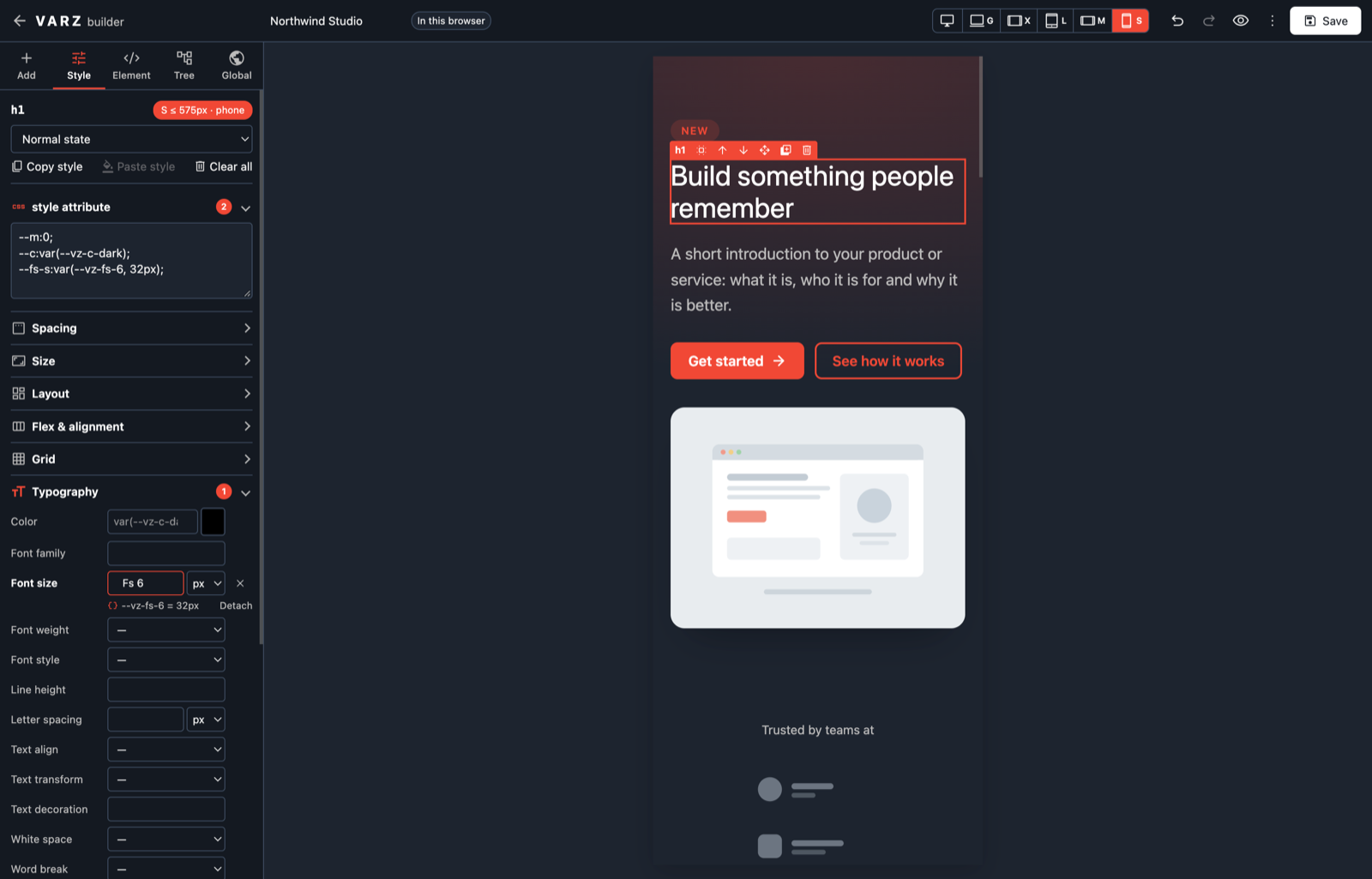
styleattribute at once. - Make it responsive: click M or S at the top. The canvas shrinks to that screen, and what you change now applies from that size down (
--fs-s:28px). Back to the desktop icon for the base values. - Preview: press P (or the eye icon) – links, tabs, popups and sliders work; P again to edit.
- Save with Ctrl/Cmd + S or the Save button. View page (the arrow icon) opens it on the site.
The editor↑ Contents
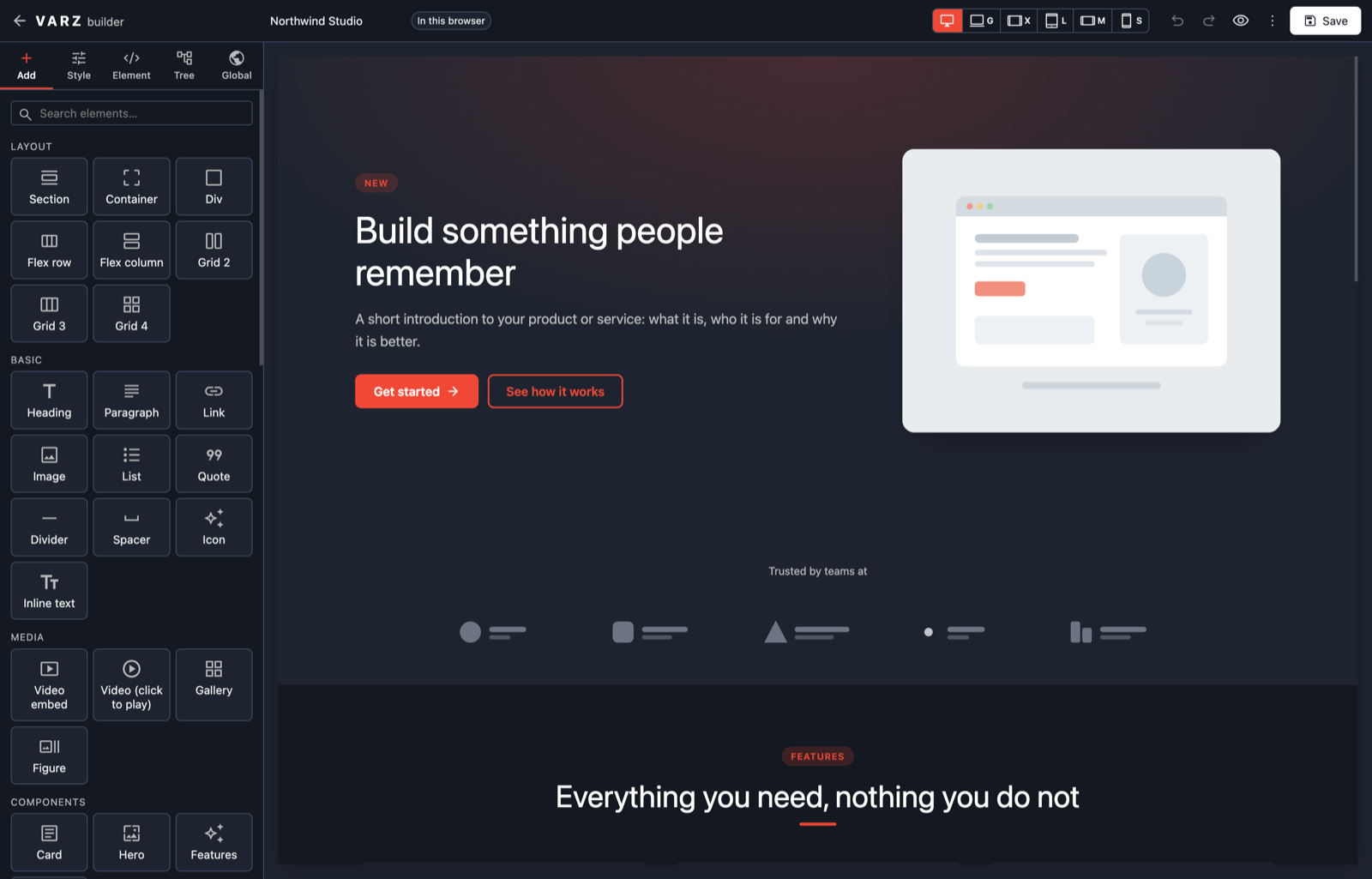
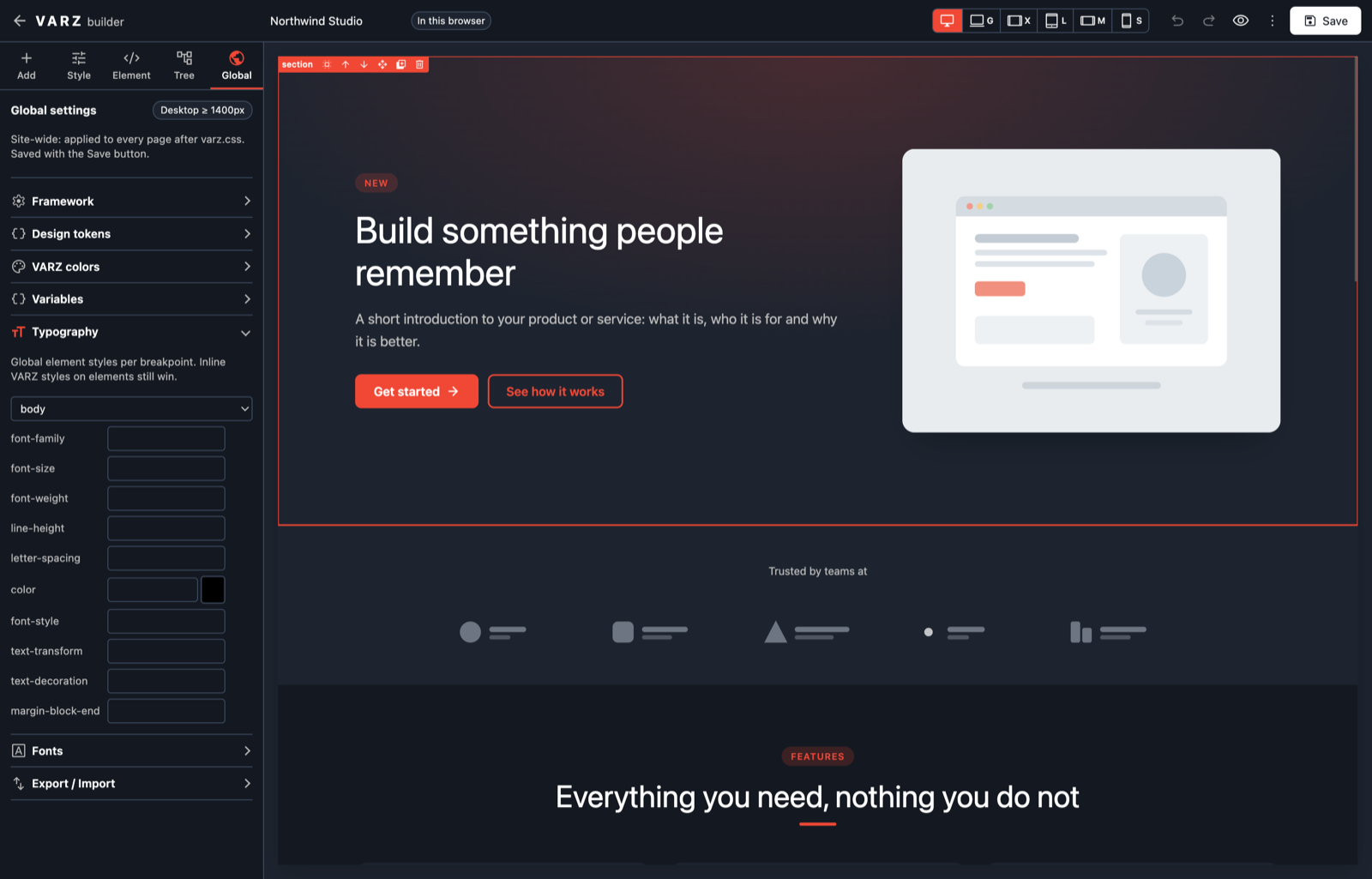
The builder shows the page in a live canvas – the real page with your theme’s header and footer – with the panel on the left and the top bar above.
Górny pasek
| Button | Co to robi |
|---|---|
| ← | Back to the WordPress dashboard (the browser warns about unsaved changes) |
| Page title, status | The page you edit and whether it is a draft or published |
| Desktop · X · M · S | The breakpoint you see and edit: desktop holds the base values, the others write --prop-x, --prop-m, --prop-s (5 breakpoints add G and L) |
| Undo / Redo | Every change can be undone – Ctrl/Cmd + Z, Ctrl/Cmd + Shift + Z or Ctrl/Cmd + Y |
| Eye | Preview mode (P): links and VARZ interactions work, no editing outlines |
| Arrow | View page – opens the page on the site in a new tab |
| ⋮ More | Download page HTML (a standalone file with the right framework build), Copy page HTML, Revisions, Edit in WordPress editor, Keyboard shortcuts |
| Zapisz | Saves the page and a WordPress revision; shows „Saved” when there is nothing new |
The panel tabs
| Tab | What is in it |
|---|---|
| Dodaj | Elements, components and patterns, with a search field – click to insert after the selected element, or drag onto the page |
| Style | Every CSS property of the selected element, for the breakpoint and the state you pick |
| Element | Tag, id and class; Display conditions; Interaction (what a click toggles); Attributes; Structure: Wrap in div, Unwrap, Add overlay, Edit HTML, Save as template, Delete. Forms, posts, sliders and other special elements show their own settings here |
| Tree | The page structure as a tree: click to select, drag to reorder or move into another element, also when the element is hard to reach in the canvas |
| Global | The site-wide design: tokens, your own variables, the framework (see Global settings) |
The canvas
- Click an element to select it; Ctrl/Cmd + click adds more elements to the selection (paste style, delete).
- Double-click text to edit it in place.
- The toolbar over the selected element: its tag, Select parent (Esc), Move up, Move down, Drag to move (Esc cancels), Duplicate (Ctrl/Cmd + D), Delete (Del).
- Right-click for more: edit text or HTML, select the parent, copy, cut, duplicate, paste before / after / inside, move to the page start or end, copy and paste style, wrap in a div, unwrap, save as template.
Keyboard shortcuts
| Keys | Action |
|---|---|
| Ctrl/Cmd + S | Zapisz |
| Ctrl/Cmd + Z | Cofnij |
| Ctrl/Cmd + Shift + Z, Ctrl/Cmd + Y | Powtórz |
| Ctrl/Cmd + C / X / V | Copy / cut / paste after the selected element |
| Ctrl/Cmd + Shift + V | Paste inside the selected element |
| Ctrl/Cmd + D | Duplikat |
| Delete / Backspace | Remove |
| Enter | Edit the text |
| Esc | Select the parent / stop editing |
| Ctrl/Cmd + click | Select several elements |
| P | Preview on / off |
The same list is in ⋮ More > Keyboard shortcuts.
Elements↑ Contents
| Group | Elementy |
|---|---|
| Układ | Section, Container, Div, Flex row, Flex column, Grid 2 / 3 / 4 |
| Basic | Heading, Paragraph, Link, Image, List, Quote, Divider, Spacer, Icon, Inline text |
| Buttons & forms | Button, Outline button, Secondary button, Input, Textarea, Select |
| Media | Video embed, Video (click to play), Gallery with lightbox, Figure |
| Elementy składowe | Card, Hero, Features, Call to action |
| Interactive | Tabs, Tabs – pills, Accordion, Accordion – multi, Popup, Side panel, Dropdown, Slider, Read more |
| Dynamic | Posts (a query rendered on every page view) |
| Advanced | Custom HTML, Markdown |
Interactive elements are accessible and keyboard friendly: popups and side panels move the focus inside, keep it there and close on Esc; a video or audio in a closed popup, panel or tab stops playing.
Markdown
Add > Advanced > Markdown turns pasted Markdown into page elements once: headings (with anchor ids for links), paragraphs, bold, italic, strikethrough, inline code, code blocks, quotes, nested and task lists, tables with column alignment, links, images and line breaks. The page stays plain HTML – nothing is parsed when it is shown. HTML inside the Markdown is shown as text.
Two options in the dialog:
- Table of contents from the h2 and h3 headings – at the top (below a first h1), or where a
[TOC]line is. - A link back to the contents by every section heading (↑ Contents) – like on this page.
Code on a page
Brackets inside
and [contact-form] is shown, not run as a shortcode.
Styling↑ Contents
The Style tab has every CSS property, grouped: layout, flex and grid, spacing, size, position, typography, background, border, effects.
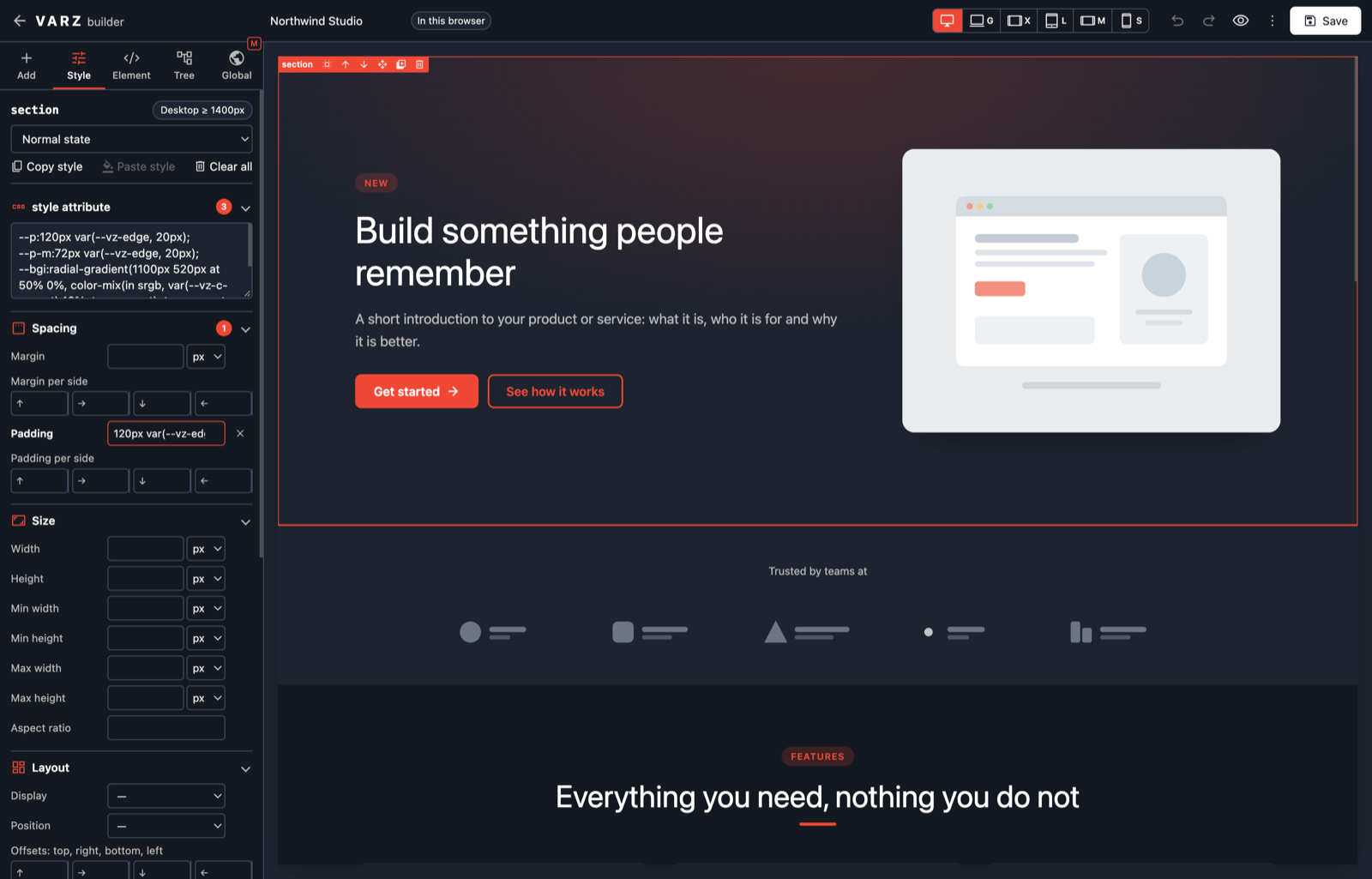
- Breakpoints: pick a device at the top – values set there apply from that breakpoint down. 3 breakpoints (X 1199, M 767, S 575px) or 5 (G 1399, X 1199, L 991, M 767, S 575px).
- States: hover, focus and the active state (
.vz, set by tabs, popups, dropdowns ...) for the properties the framework supports there – colors, borders, background, opacity, transform, position and more.
- Sides: margin, padding, inset and border width in one row (top, right, bottom, left) with a link toggle; corners for the radius.
- Values: drag a field's label to change a number, or use ↑ / ↓ (Shift: ×10); pick a unit; choose a global variable from the list (shown by name and value); recently used values come first.
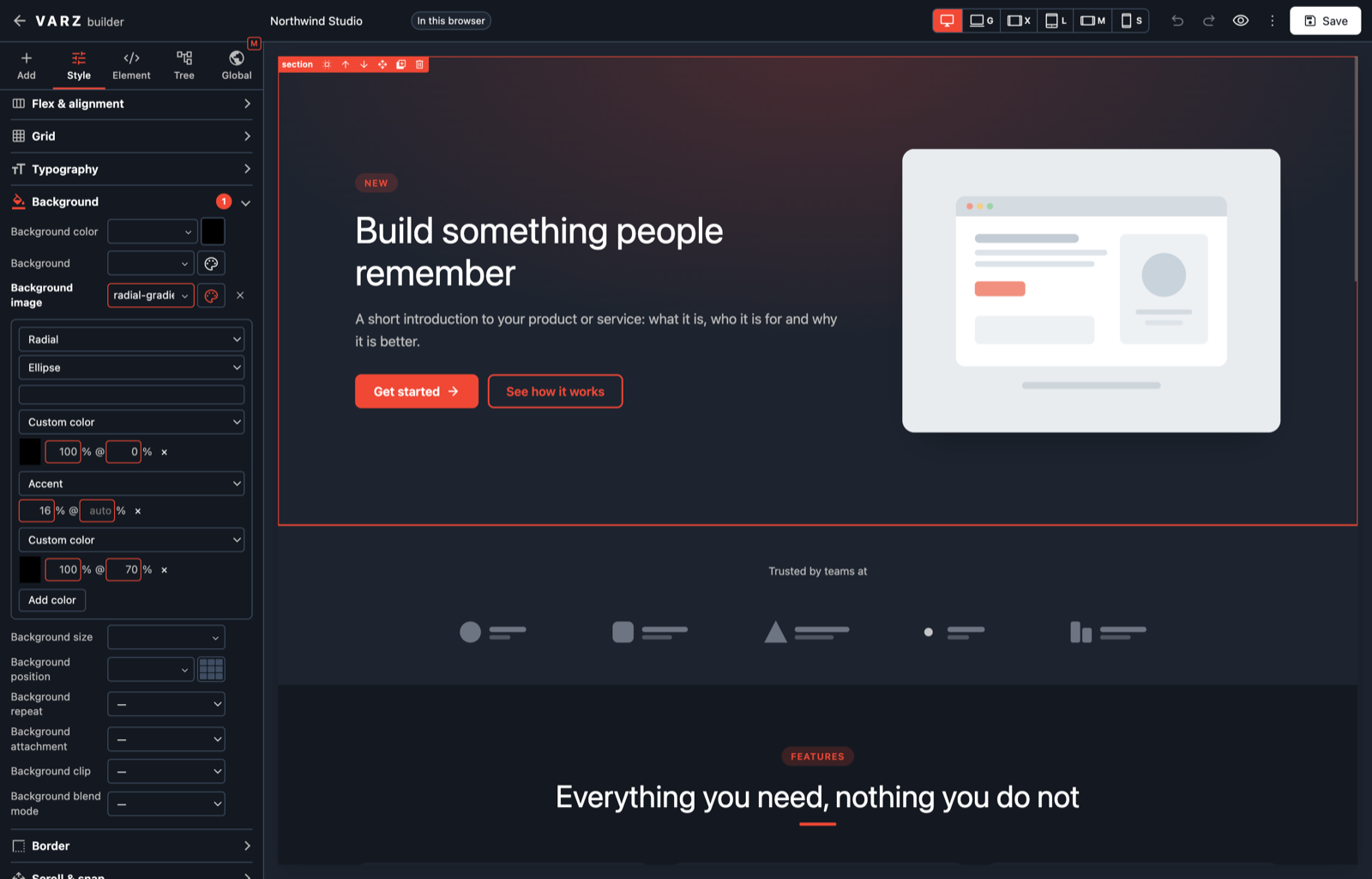
- Visual editors: gradients (with the palette and an "over the image" option), box shadows, transforms and transitions.
- Background position: a 3×3 grid.
- Copy style / Paste style between elements (several at once with Ctrl/Cmd + click).
Global settings↑ Contents
Global (the last tab) holds the site-wide design:
- Design tokens: colors, fonts, scales (space, radius, font sizes – each grows with its number:
--vz-fs-1 is the smallest), buttons and form fields. With the VARZ theme they are the theme's own settings.
- Variables: your own CSS variables (color, dimension, font family or any string), offered in every style field.
- Framework: 3 or 5 breakpoints.
- Export / Import of the global settings.
Saving↑ Contents
- Save keeps a normal WordPress revision of every version (⋮ More > Revisions).
- Save builder pages as (VARZ > Settings): VARZ blocks (the default – the page can also be edited in the block editor; parts without a matching block stay in "VARZ content" blocks) or One Custom HTML block. Both keep the markup exactly as built.
- ⋮ More > Download page HTML saves the page as a standalone HTML file with the right framework build; Copy page HTML puts the markup on the clipboard.
No lock-in
The page is plain HTML with inline styles. Deactivate the plugin and it keeps rendering with the VARZ theme; with other themes, add the VARZ framework stylesheet.
Block editor↑ Contents
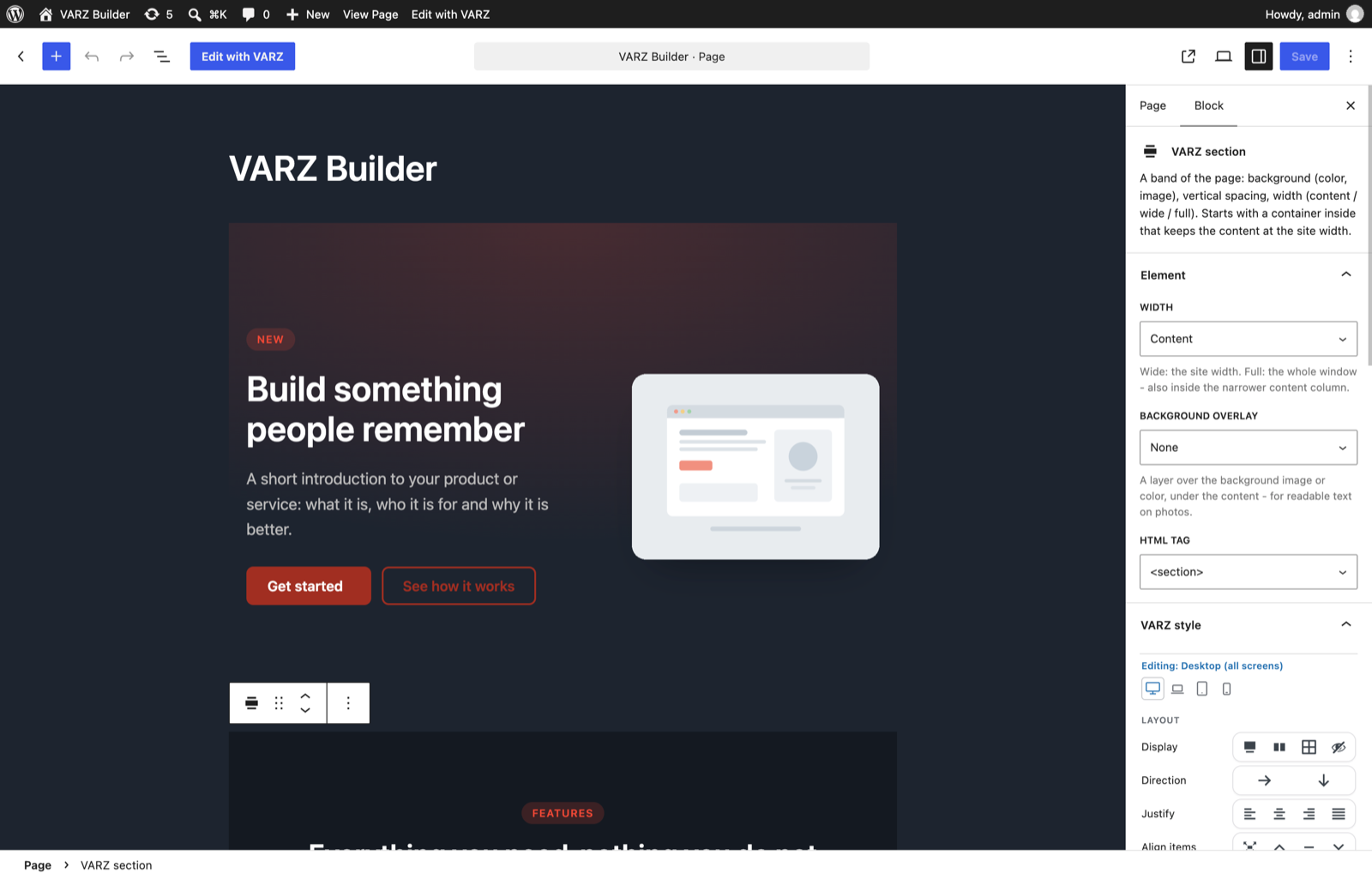
VARZ blocks: section, container, grid, column, heading, text, buttons, button, image, tabs, accordion, slider and gallery – each with a VARZ style panel. The VARZ content block holds any builder markup inside block editor content; its Edit with VARZ button opens the builder for just that block.
Forms↑ Contents
Contact forms (from the patterns, built with the form elements) send their messages through WordPress mail.
VARZ > Settings > Forms:
- Send messages to: one or more addresses (empty: the site's admin address).
- More recipients: named addresses a form can pick by key (
data-varz-form-to="sales") – addresses never come from the visitor's browser.
- Subject with placeholders
{site}, {form}, {name}, {email}, {page}, and the default success and error messages.
- Demo mode: forms work and show the message, but nothing is sent.
Spam protection without captchas: a hidden field, a minimum time on the page and a limit of 5 messages per 10 minutes per visitor. The visitor's address is the Reply-To.
Developer hooks: varz_builder_form_recipient, varz_builder_form_pre_send (send it elsewhere, e.g. a CRM), varz_builder_form_submitted.
Display conditions↑ Contents
Show or hide any element – and any block, also core and other plugins' blocks and widgets – by rules. Hidden items are not in the page at all (no CSS hiding). Combine rules with all or any, and negate any rule. In the builder: Element > Display conditions; in the block editor: the block's sidebar.
Rules: logged in, user role, page, singular, archive, specific posts, term archive, has term, date from, date until, weekdays, hours, URL query, referrer, cookie, language, WooCommerce page, cart contents, bought products.
With a full-page cache, time, query, referrer, cookie and language rules may be served from the cache. Developers can add rule types with the varz_builder_condition_{type} filter.
Settings↑ Contents
VARZ > Settings
- Post types where "Edit with VARZ" and the VARZ content block are available.
- User roles that may use the builder (administrators always). Users without the
unfiltered_html capability get their content filtered on save: VARZ styles stay; scripts, forms and embeds are removed.
- Save builder pages as: VARZ blocks or one Custom HTML block.
- Framework (with themes that do not load it themselves): CSS reset on or off, prefixed variable names (
--vz-p instead of --p), load on pages with VARZ content only or on every page.
- Menu item icons: an icon for any menu item, with size, spacing, position, background, shape and colors. Your own icons: paste SVG code (only shapes are kept).
- Forms: see above.
- Clean up (front end only): emoji script and styles, jQuery Migrate, generator tags, RSD link, shortlink, REST API links, oEmbed discovery, feed links, Dashicons for visitors, and WordPress block styles (with themes other than VARZ – the VARZ theme has its own switch).
- Export, import & reset of all VARZ settings.
VARZ > Starter sites: import a ready site (pages, images, menus, settings) from the list on cdn.varz.dev or from a package file, with a guided wizard.
Tools > VARZ variable names: converts content between plain (--p) and prefixed (--vz-p) variable names, with a revision of every changed item.
Online builder (no WordPress)↑ Contents
The same editor runs without WordPress at varz.dev/builder – nothing to install, no account. Build a page, then ⋮ More > Download page HTML or Copy page HTML and use it anywhere the VARZ framework is loaded: a static site, another CMS, an email to your developer.
What is different there:
- The page, your global settings and templates are kept in your browser (local storage) – clearing the site data removes them. ⋮ More has New page and Open an HTML file.
- Images take an address instead of the Media Library.
- No WordPress features: no Posts element, no display conditions, no revisions; forms are built but not sent.
Privacy↑ Contents
The builder tracks nothing. It contacts cdn.varz.dev only when an administrator opens VARZ > Starter sites. Form messages are sent by your own site's mail. The online builder keeps everything in your browser.
For developers↑ Contents
- Markup is VARZ:
- Filters:
varz_builder_icon_shapes (icons), varz_builder_starter_index_url (the starter sites list), varz_builder_condition_{type} (condition rules); form hooks above.