

एक भी CSS लाइन जोड़ने, उत्पन्न करने या संकलित किए बिना लगभग किसी भी मात्रा में प्रतिक्रियाशील पृष्ठ बनाएं। VARZ बिल्डर वर्डप्रेस के लिए एक दृश्य पृष्ठ बिल्डर है: आप पृष्ठ पर तत्वों को खींचते हैं और प्रत्येक स्क्रीन आकार और स्थिति के अनुसार किसी भी CSS गुण को स्टाइल करते हैं। प्रत्येक शैली तत्व के भीतर ही VARZ चर के रूप में सहेजी जाती है। style गुणधर्म – style="--d:grid;--gtc:1fr 1fr;--gtc-m:1fr" – और एक छोटी फ्रेमवर्क फ़ाइल (लगभग 7 KB gzipped) इन्हें सभी को समझती है। कोई शॉर्टकोड नहीं, कोई पोस्ट मेटा नहीं, कोई कस्टम टेबल नहीं, प्रति पेज कोई CSS फ़ाइल नहीं।
स्थापना↑ सामग्री
- WordPress में Plugins > Add New Plugin पर जाएँ और VARZ Builder (या अपलोड करें
varz-builder.zipके साथ Upload Plugin)। - इंस्टॉल नाउ पर क्लिक करें, फिर एक्टिवेट करें।
- किसी भी पेज को खोलें और पेज सूची, ब्लॉक एडिटर या एडमिन बार में 'VARZ के साथ संपादित करें' पर क्लिक करें।
आवश्यकताएँ: वर्डप्रेस 6.5 या नया, PHP 8.2 या नया। पहले देखना चाहते हैं? wordpress.org/plugins/varz-builder पर लाइव प्रीव्यू बटन आपके ब्राउज़र में सीधे बिल्डर में एक डेमो पेज खोलता है – कुछ भी इंस्टॉल करने की आवश्यकता नहीं।
यह बिल्डर VARZ थीम के साथ सबसे अच्छा काम करता है: यह थीम के रंग, फ़ॉन्ट्स और बटन लेता है। किसी भी अन्य थीम के साथ यह फ्रेमवर्क भी साथ लाता है – बिल्डर पेजों के लिए VARZ की फुल-विड्थ पेज टेम्पलेट चुनें, ताकि थीम का हेडर और फ़ुटर बने रहें और पेज को पूरी चौड़ाई मिले।
8 चरणों में आपका पहला पृष्ठ↑ सामग्री
- पृष्ठ > नया पृष्ठ जोड़ें, इसे एक शीर्षक दें, फिर VARZ के साथ संपादित करें (या पृष्ठ सूची में VARZ के साथ संपादित करें)।
- Add टैब में Section पर क्लिक करें – यह पेज में डाला जाता है और चयनित हो जाता है। प्रत्येक अगला तत्व चयनित तत्व के बाद आता है; किसी तत्व को कैनवास पर खींचकर ठीक वहीं छोड़ें जहाँ आप चाहते हैं।
- चयनित अनुभाग के साथ, एक शीर्षक, एक अनुच्छेद और एक बटन जोड़ें। या तेज़ी से शुरू करें: घटक (हीरो, फीचर्स, कार्ड, कॉल टू एक्शन) या एक पैटर्न।
- टेक्स्ट संपादित करने के लिए कैनवास में उस पर डबल-क्लिक करें (या Enter दबाएँ)। Esc संपादन बंद कर देता है और फिर पैरेंट को चुनता है।
- इसे स्टाइल करें: स्टाइल टैब खोलें और पैडिंग, रंग, फ़ॉन्ट आकार … बदलें – मान एलिमेंट में लिखा जाता है।
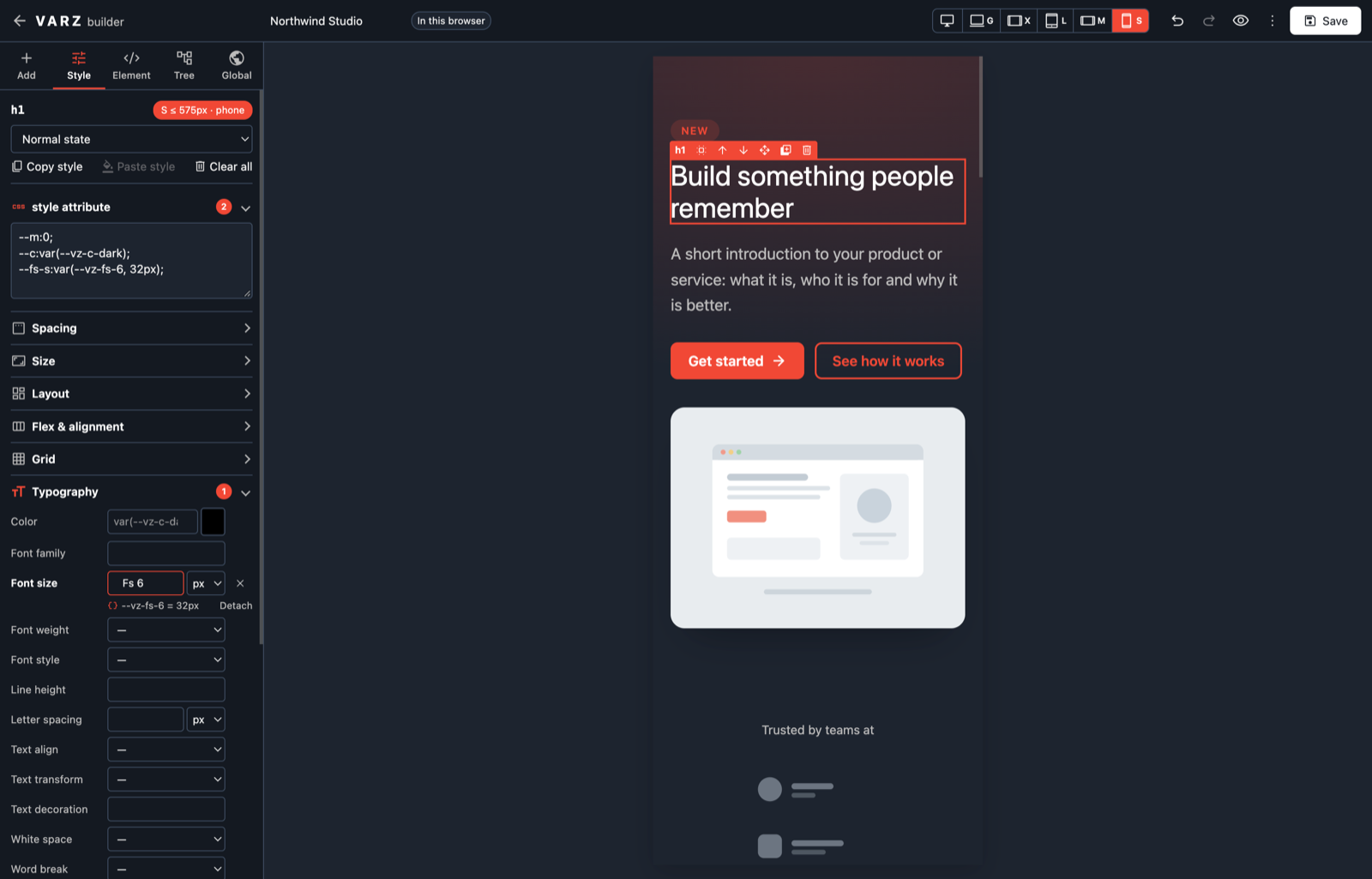
styleगुणधर्म में तुरंत लिखा जाता है। - इसे रिस्पॉन्सिव बनाएं: ऊपर M या S पर क्लिक करें। कैनवास उस स्क्रीन के आकार में सिकुड़ जाता है, और अब आप जो बदलाव करते हैं वे उस आकार से नीचे लागू होते हैं (
--fs-s:28px). मूल मानों के लिए डेस्कटॉप आइकन पर वापस जाएँ। - पूर्वावलोकन: P (या आँख आइकन) दबाएँ – लिंक, टैब, पॉपअप और स्लाइडर काम करते हैं; संपादन के लिए फिर से P दबाएँ।
- Ctrl/Cmd + S या सेव बटन से सेव करें। व्यू पेज (तीर आइकन) इसे साइट पर खोलता है।
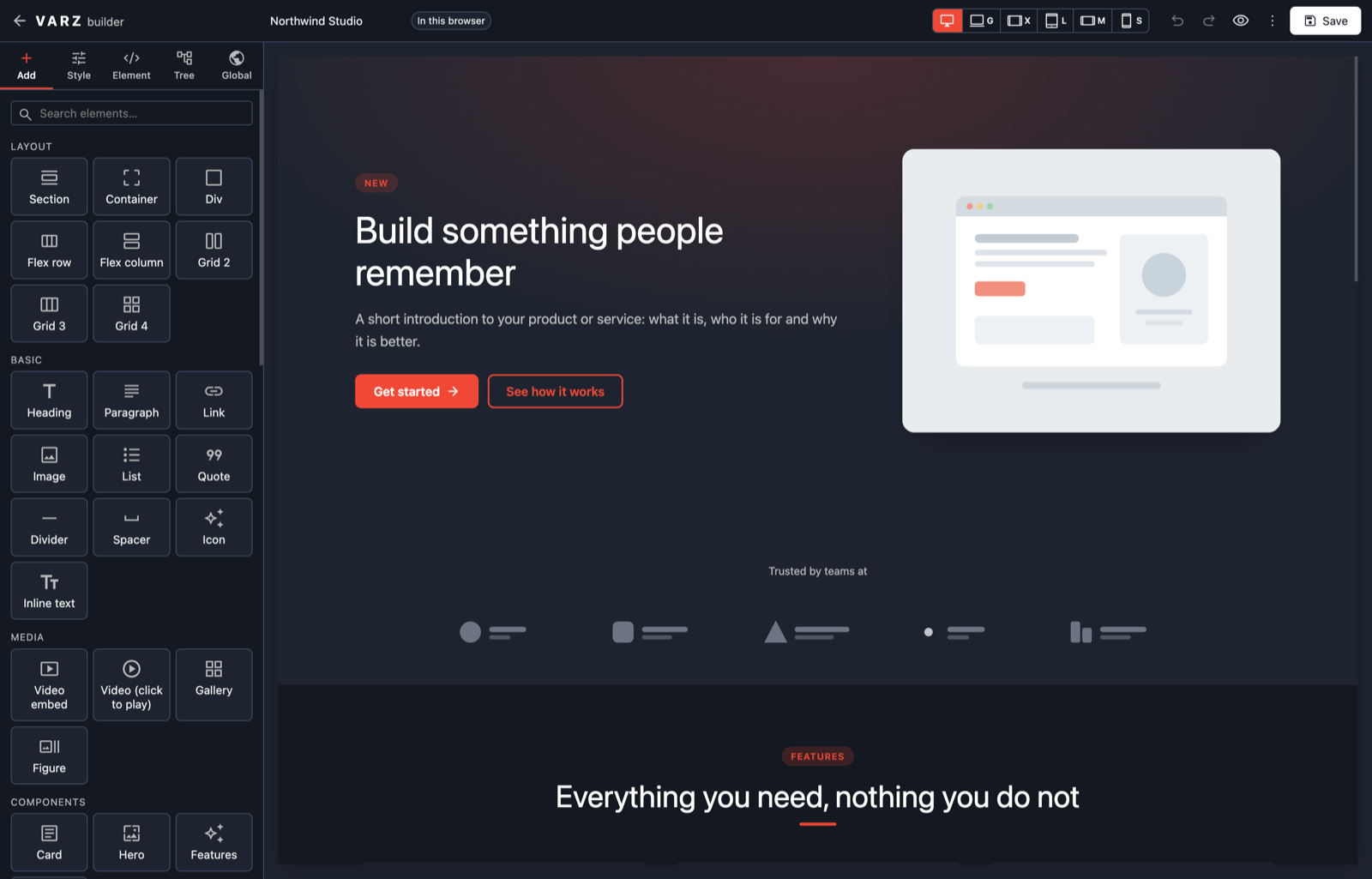
संपादक↑ सामग्री
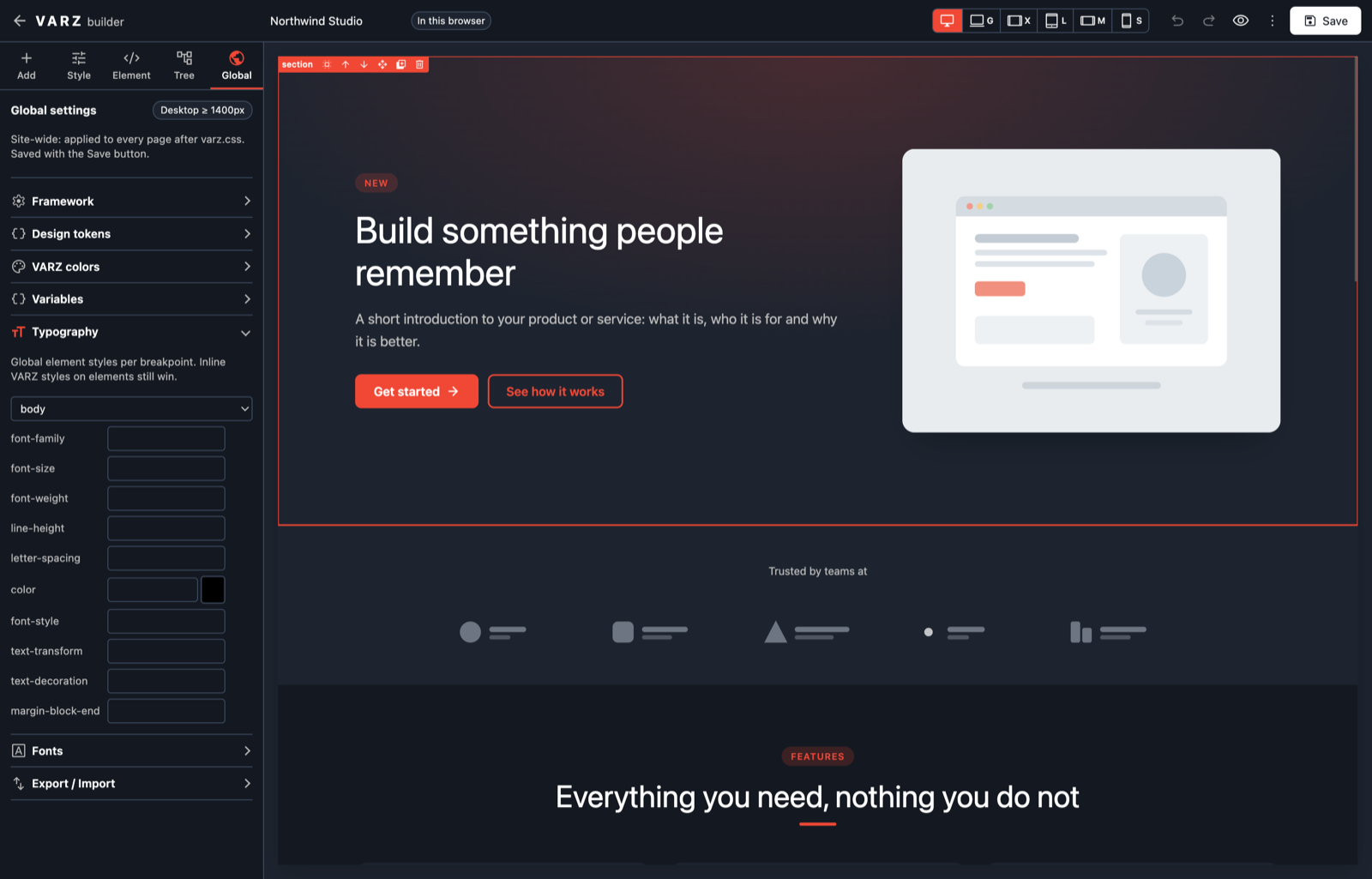
बिल्डर पेज को एक लाइव कैनवास में दिखाता है – असली पेज, जिसमें आपके थीम का हेडर और फुटर शामिल हैं – बाईं ओर पैनल और ऊपर टॉप बार के साथ।
शीर्ष बार
| बटन | यह क्या करता है |
|---|---|
| ← | WordPress डैशबोर्ड पर वापस (ब्राउज़र असहेजित परिवर्तनों के बारे में चेतावनी देता है) |
| पृष्ठ शीर्षक, स्थिति | आप जिस पृष्ठ को संपादित करते हैं और यह कि वह मसौदा है या प्रकाशित |
| डेस्कटॉप · एक्स · एम · एस | आप जो ब्रेकपॉइंट देखते और संपादित करते हैं: डेस्कटॉप में आधार मान होते हैं, बाकी में लिखे जाते हैं --prop-x, --prop-m, --prop-s (5 ब्रेकपॉइंट्स G और L जोड़ें) |
| रद्द करें / दोबारा करें | हर बदलाव को वापस लिया जा सकता है – Ctrl/Cmd + Z, Ctrl/Cmd + Shift + Z या Ctrl/Cmd + Y |
| आँख | पूर्वावलोकन मोड (P): लिंक और VARZ इंटरैक्शन काम करते हैं, आउटलाइन संपादित नहीं की जा सकती। |
| तीर | पृष्ठ देखें – साइट पर पृष्ठ को एक नए टैब में खोलता है |
| और अधिक | डाउनलोड पेज HTML (सही फ्रेमवर्क बिल्ड वाली एक स्टैंडअलोन फ़ाइल), पेज HTML कॉपी करें, संशोधन, वर्डप्रेस एडिटर में संपादित करें, कीबोर्ड शॉर्टकट्स |
| बचाएँ | पृष्ठ और वर्डप्रेस संशोधन को सहेजता है; जब कुछ भी नया नहीं होता है तो "सहेजा गया" दिखाता है। |
पैनल टैब्स
| टैब | इसमें क्या है |
|---|---|
| जोड़ें | तत्व, घटक और पैटर्न, एक खोज क्षेत्र के साथ – चयनित तत्व के बाद डालने के लिए क्लिक करें, या पृष्ठ पर खींचें |
| शैली | आपके द्वारा चुने गए ब्रेकपॉइंट और स्थिति के लिए चयनित तत्व की प्रत्येक CSS संपत्ति |
| एलिमेंट | टैग, आईडी और क्लास; प्रदर्शन की शर्तें; इंटरैक्शन (क्लिक से क्या टॉगल होता है); गुण; संरचना: div में लपेटें, अनलपेटें, ओवरले जोड़ें, HTML संपादित करें, टेम्पलेट के रूप में सहेजें, हटाएँ। फॉर्म, पोस्ट, स्लाइडर और अन्य विशेष तत्व अपनी सेटिंग्स यहाँ दिखाते हैं। |
| पेड़ | पृष्ठ की संरचना एक वृक्ष के रूप में: चयन करने के लिए क्लिक करें, पुनःक्रमबद्ध करने या किसी अन्य तत्व में ले जाने के लिए ड्रैग करें, तब भी जब तत्व कैनवास में पहुँचने में कठिन हो। |
| वैश्विक | साइट-व्यापी डिज़ाइन: टोकन, आपके स्वयं के चर, फ्रेमवर्क (ग्लोबल सेटिंग्स देखें) |
कैनवास
- किसी तत्व पर क्लिक करके उसे चुनें; Ctrl/Cmd + क्लिक से चयन में और तत्व जुड़ते हैं (पेस्ट शैली, हटाएँ)।
- टेक्स्ट को वहीं संपादित करने के लिए उस पर डबल-क्लिक करें।
- चयनित तत्व पर टूलबार: इसका टैग, चयनित अभिभावक (Esc), ऊपर ले जाएं, नीचे ले जाएं, ले जाने के लिए खींचें (Esc रद्द करता है), प्रतिलिपि बनाएँ (Ctrl/Cmd + D), हटाएँ (Del).
- अधिक विकल्पों के लिए राइट-क्लिक करें: टेक्स्ट या HTML संपादित करें, पैरेंट चुनें, कॉपी करें, कट करें, डुप्लिकेट करें, पहले/बाद में/अंदर पेस्ट करें, पेज की शुरुआत या अंत में ले जाएँ, शैली कॉपी और पेस्ट करें, div में लपेटें, अनलपेटें, टेम्पलेट के रूप में सहेजें।
कीबोर्ड शॉर्टकट
| कुंजियाँ | कार्रवाई |
|---|---|
| Ctrl/Cmd + S | बचाएँ |
| Ctrl/Cmd + Z | रद्द करें |
| Ctrl/Cmd + Shift + Z, Ctrl/Cmd + Y | दोबारा करें |
| Ctrl/Cmd + C / X / V | चयनित तत्व के बाद कॉपी / कट / पेस्ट करें |
| Ctrl/Cmd + Shift + V | चुने गए तत्व के अंदर पेस्ट करें |
| Ctrl/Cmd + D | प्रतिलिपि |
| मिटाएँ / बैकस्पेस | हटाएँ |
| प्रवेश करें | टेक्स्ट संपादित करें |
| भागो | माता-पिता चुनें / संपादन बंद करें |
| Ctrl/Cmd + क्लिक | कई तत्व चुनें |
| पी | पूर्वावलोकन चालू / बंद |
वही सूची ⋮ अधिक > कीबोर्ड शॉर्टकट्स में है।
तत्व↑ सामग्री
| समूह | तत्व |
|---|---|
| लेआउट | सेक्शन, कंटेनर, डिव, फ्लेक्स रो, फ्लेक्स कॉलम, ग्रिड 2/3/4 |
| मूलभूत | शीर्षक, अनुच्छेद, लिंक, छवि, सूची, उद्धरण, विभाजक, स्पेसर, आइकन, इनलाइन टेक्स्ट |
| बटन और फ़ॉर्म | बटन, आउटलाइन बटन, द्वितीयक बटन, इनपुट, टेक्स्टएरिया, सेलेक्ट |
| मीडिया | वीडियो एम्बेड, वीडियो (चलाने के लिए क्लिक करें), लाइटबॉक्स के साथ गैलरी, आकृति |
| घटक | कार्ड, हीरो, विशेषताएँ, कॉल टू एक्शन |
| परस्पर क्रियाशील | टैब्स, टैब्स – पिल्स, एकॉर्डियन, एकॉर्डियन – मल्टी, पॉपअप, साइड पैनल, ड्रॉपडाउन, स्लाइडर, और पढ़ें |
| गतिशील | पोस्ट्स (हर पेज व्यू पर रेंडर होने वाली क्वेरी) |
| उन्नत | कस्टम एचटीएमएल, मार्कडाउन |
इंटरैक्टिव तत्व सुलभ और कीबोर्ड-अनुकूल हैं: पॉपअप और साइड पैनल फोकस को अंदर ले जाते हैं, वहीं बनाए रखते हैं और Esc दबाने पर बंद हो जाते हैं; बंद पॉपअप, पैनल या टैब में वीडियो या ऑडियो प्ले होना बंद कर देता है।
मार्कडाउन
Add > Advanced > Markdown चिपकाए गए Markdown को एक बार में पेज के तत्वों में बदल देता है: शीर्षक (लिंकों के लिए एंकर आईडी के साथ), अनुच्छेद, बोल्ड, इटैलिक, स्ट्राइकथ्रू, इनलाइन कोड, कोड ब्लॉक, उद्धरण, नेस्टेड और कार्य सूचियाँ, स्तंभ संरेखण के साथ तालिकाएँ, लिंक, छवियाँ और लाइन ब्रेक। पृष्ठ सादा HTML ही रहता है – दिखाए जाने पर कुछ भी पार्स नहीं किया जाता। Markdown के अंदर का HTML टेक्स्ट के रूप में दिखाया जाता है।
संवाद बॉक्स में दो विकल्प:
- h2 और h3 शीर्षकों से सामग्री की तालिका – सबसे ऊपर (पहले h1 के नीचे), या जहाँ एक
[TOC]लाइन है। - प्रत्येक अनुभाग शीर्षक द्वारा सामग्री पर वापस जाने का लिंक (↑ सामग्री) – जैसे इस पृष्ठ पर।
एक पृष्ठ पर कोड
अंदर ब्रैकेट्स
and [contact-form] is shown, not run as a shortcode.
Styling↑ Contents
The Style tab has every CSS property, grouped: layout, flex and grid, spacing, size, position, typography, background, border, effects.
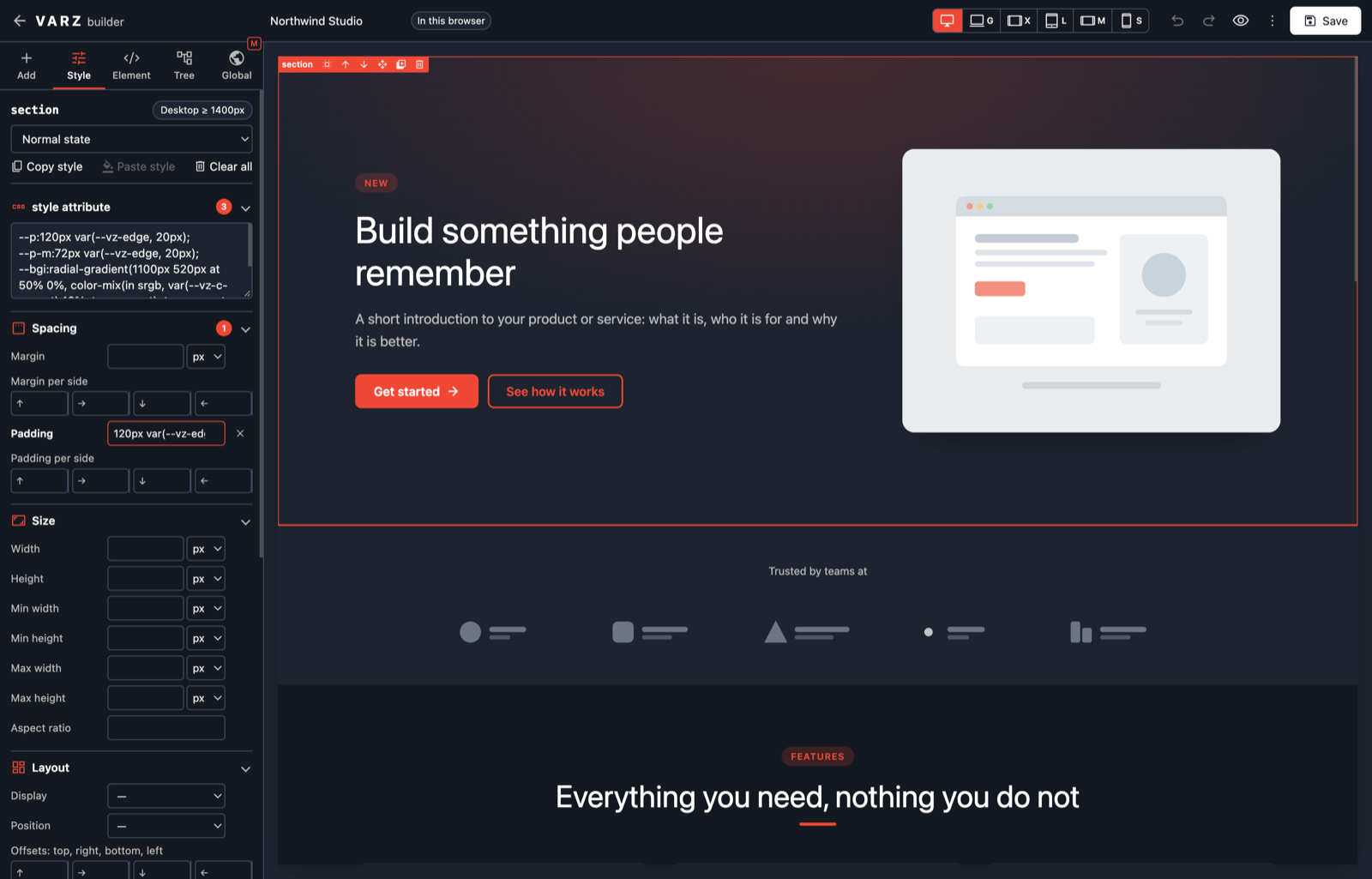
- Breakpoints: pick a device at the top – values set there apply from that breakpoint down. 3 breakpoints (X 1199, M 767, S 575px) or 5 (G 1399, X 1199, L 991, M 767, S 575px).
- States: hover, focus and the active state (
.vz, set by tabs, popups, dropdowns ...) for the properties the framework supports there – colors, borders, background, opacity, transform, position and more.
- Sides: margin, padding, inset and border width in one row (top, right, bottom, left) with a link toggle; corners for the radius.
- Values: drag a field's label to change a number, or use ↑ / ↓ (Shift: ×10); pick a unit; choose a global variable from the list (shown by name and value); recently used values come first.
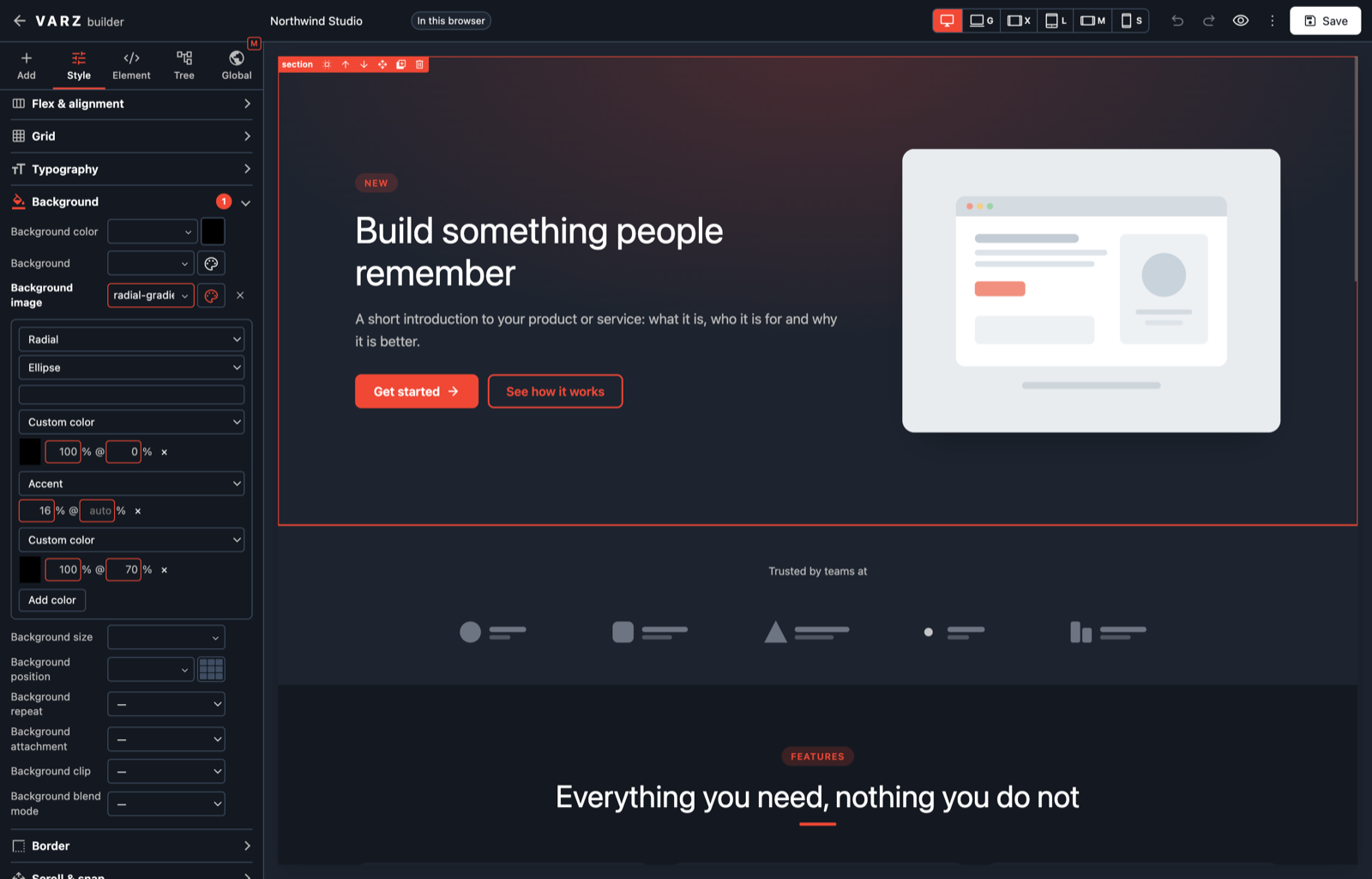
- Visual editors: gradients (with the palette and an "over the image" option), box shadows, transforms and transitions.
- Background position: a 3×3 grid.
- Copy style / Paste style between elements (several at once with Ctrl/Cmd + click).
Global settings↑ Contents
Global (the last tab) holds the site-wide design:
- Design tokens: colors, fonts, scales (space, radius, font sizes – each grows with its number:
--vz-fs-1 is the smallest), buttons and form fields. With the VARZ theme they are the theme's own settings.
- Variables: your own CSS variables (color, dimension, font family or any string), offered in every style field.
- Framework: 3 or 5 breakpoints.
- Export / Import of the global settings.
Saving↑ Contents
- Save keeps a normal WordPress revision of every version (⋮ More > Revisions).
- Save builder pages as (VARZ > Settings): VARZ blocks (the default – the page can also be edited in the block editor; parts without a matching block stay in "VARZ content" blocks) or One Custom HTML block. Both keep the markup exactly as built.
- ⋮ More > Download page HTML saves the page as a standalone HTML file with the right framework build; Copy page HTML puts the markup on the clipboard.
No lock-in
The page is plain HTML with inline styles. Deactivate the plugin and it keeps rendering with the VARZ theme; with other themes, add the VARZ framework stylesheet.
Block editor↑ Contents
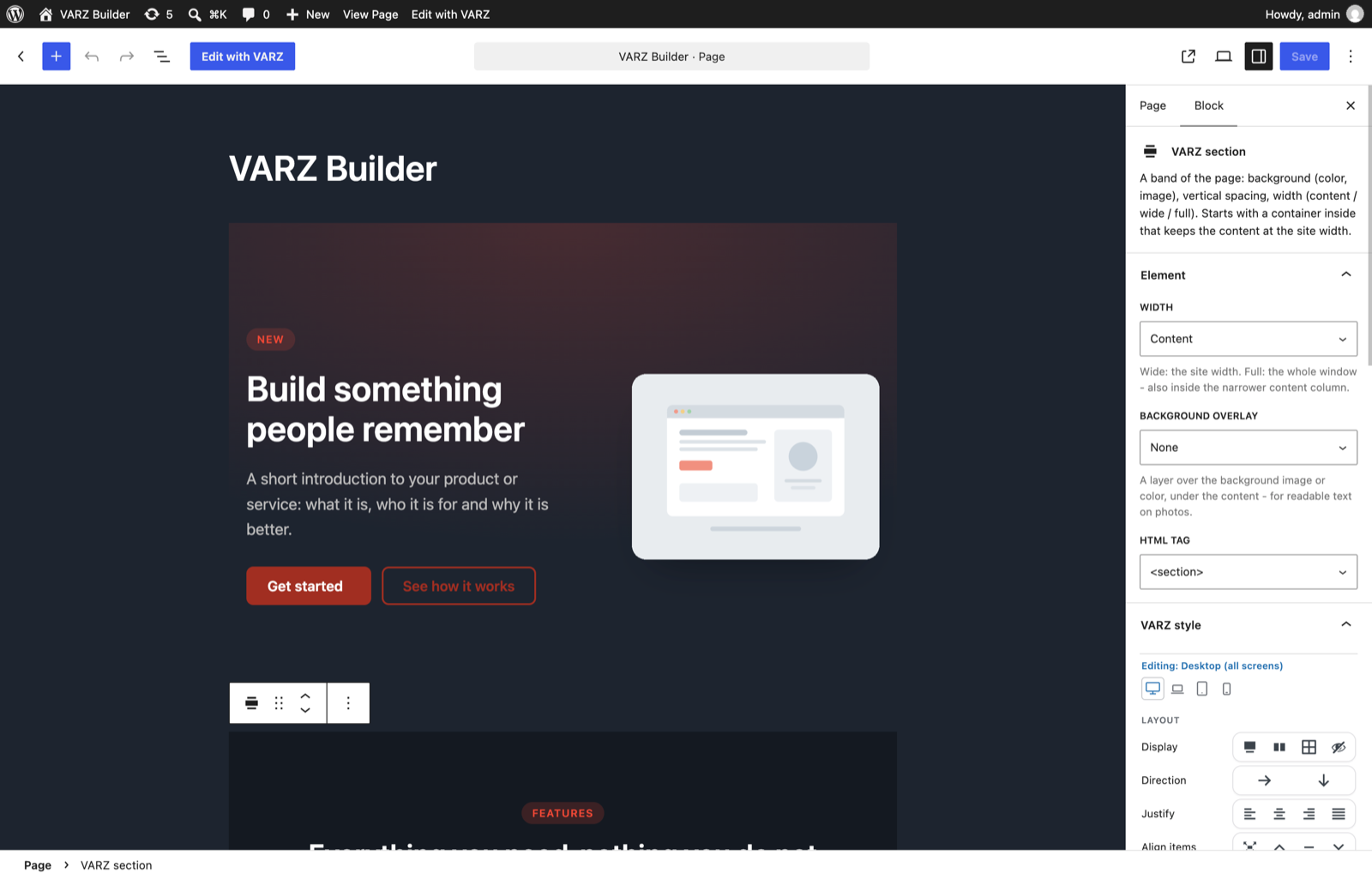
VARZ blocks: section, container, grid, column, heading, text, buttons, button, image, tabs, accordion, slider and gallery – each with a VARZ style panel. The VARZ content block holds any builder markup inside block editor content; its Edit with VARZ button opens the builder for just that block.
Forms↑ Contents
Contact forms (from the patterns, built with the form elements) send their messages through WordPress mail.
VARZ > Settings > Forms:
- Send messages to: one or more addresses (empty: the site's admin address).
- More recipients: named addresses a form can pick by key (
data-varz-form-to="sales") – addresses never come from the visitor's browser.
- Subject with placeholders
{site}, {form}, {name}, {email}, {page}, and the default success and error messages.
- Demo mode: forms work and show the message, but nothing is sent.
Spam protection without captchas: a hidden field, a minimum time on the page and a limit of 5 messages per 10 minutes per visitor. The visitor's address is the Reply-To.
Developer hooks: varz_builder_form_recipient, varz_builder_form_pre_send (send it elsewhere, e.g. a CRM), varz_builder_form_submitted.
Display conditions↑ Contents
Show or hide any element – and any block, also core and other plugins' blocks and widgets – by rules. Hidden items are not in the page at all (no CSS hiding). Combine rules with all or any, and negate any rule. In the builder: Element > Display conditions; in the block editor: the block's sidebar.
Rules: logged in, user role, page, singular, archive, specific posts, term archive, has term, date from, date until, weekdays, hours, URL query, referrer, cookie, language, WooCommerce page, cart contents, bought products.
With a full-page cache, time, query, referrer, cookie and language rules may be served from the cache. Developers can add rule types with the varz_builder_condition_{type} filter.
Settings↑ Contents
VARZ > Settings
- Post types where "Edit with VARZ" and the VARZ content block are available.
- User roles that may use the builder (administrators always). Users without the
unfiltered_html capability get their content filtered on save: VARZ styles stay; scripts, forms and embeds are removed.
- Save builder pages as: VARZ blocks or one Custom HTML block.
- Framework (with themes that do not load it themselves): CSS reset on or off, prefixed variable names (
--vz-p instead of --p), load on pages with VARZ content only or on every page.
- Menu item icons: an icon for any menu item, with size, spacing, position, background, shape and colors. Your own icons: paste SVG code (only shapes are kept).
- Forms: see above.
- Clean up (front end only): emoji script and styles, jQuery Migrate, generator tags, RSD link, shortlink, REST API links, oEmbed discovery, feed links, Dashicons for visitors, and WordPress block styles (with themes other than VARZ – the VARZ theme has its own switch).
- Export, import & reset of all VARZ settings.
VARZ > Starter sites: import a ready site (pages, images, menus, settings) from the list on cdn.varz.dev or from a package file, with a guided wizard.
Tools > VARZ variable names: converts content between plain (--p) and prefixed (--vz-p) variable names, with a revision of every changed item.
Online builder (no WordPress)↑ Contents
The same editor runs without WordPress at varz.dev/builder – nothing to install, no account. Build a page, then ⋮ More > Download page HTML or Copy page HTML and use it anywhere the VARZ framework is loaded: a static site, another CMS, an email to your developer.
What is different there:
- The page, your global settings and templates are kept in your browser (local storage) – clearing the site data removes them. ⋮ More has New page and Open an HTML file.
- Images take an address instead of the Media Library.
- No WordPress features: no Posts element, no display conditions, no revisions; forms are built but not sent.
Privacy↑ Contents
The builder tracks nothing. It contacts cdn.varz.dev only when an administrator opens VARZ > Starter sites. Form messages are sent by your own site's mail. The online builder keeps everything in your browser.
For developers↑ Contents
- Markup is VARZ:
- Filters:
varz_builder_icon_shapes (icons), varz_builder_starter_index_url (the starter sites list), varz_builder_condition_{type} (condition rules); form hooks above.